Connect your LG Smart TV Online!
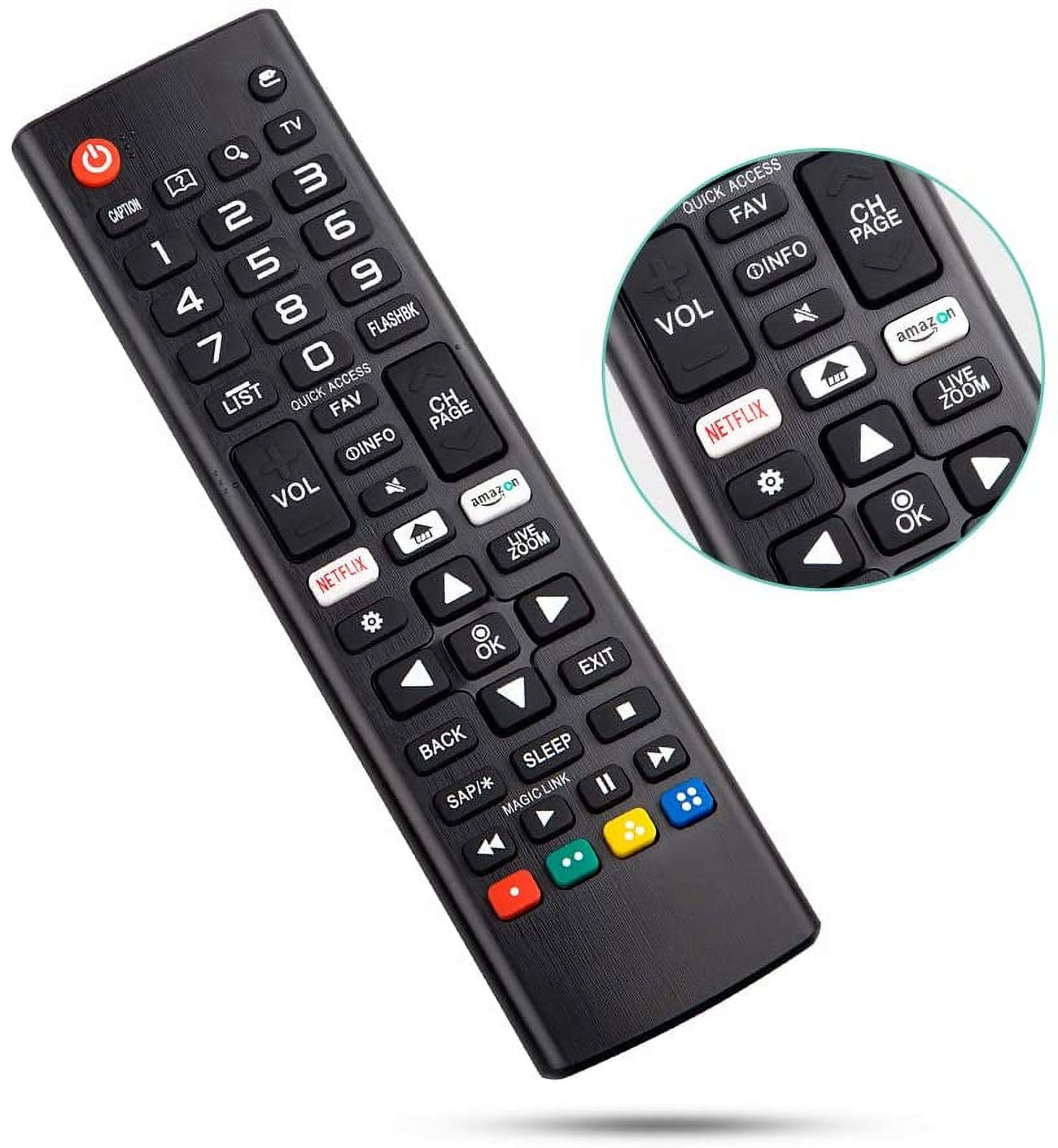
First, grab your trusty TV remote. Look for a button that looks like a gear or settings. It's usually around the center. Once you find it, press it.
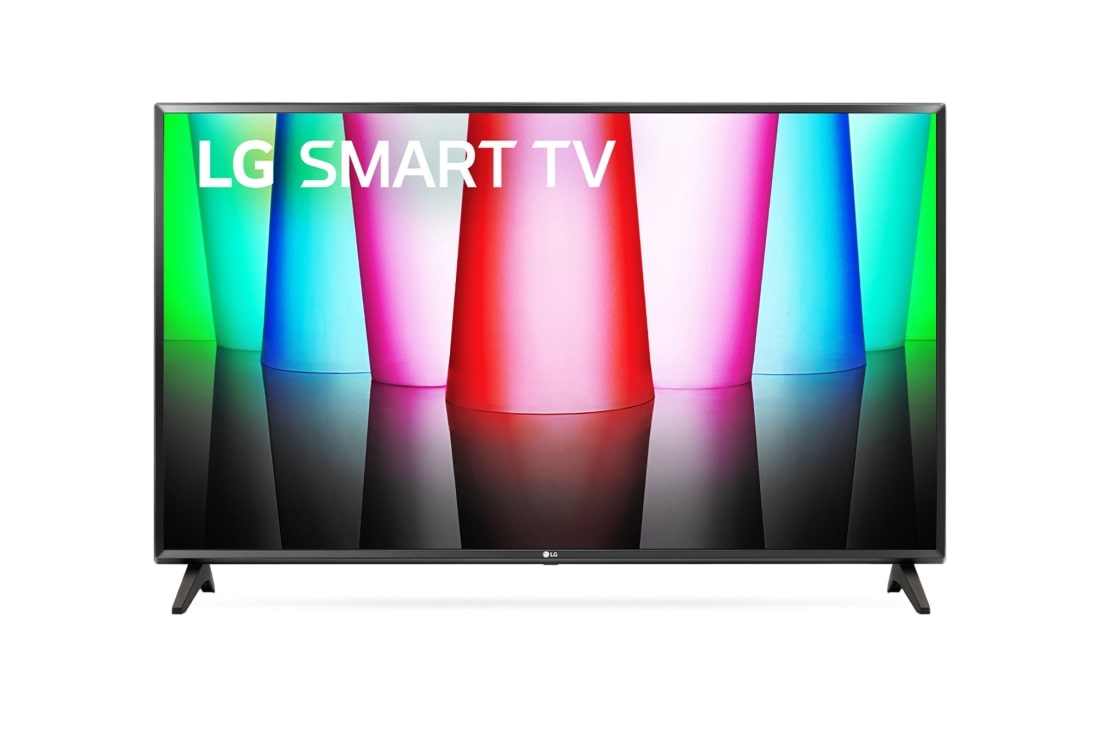
You'll see a menu pop up on your TV screen. It's like a secret world of options! Use the arrow buttons on your remote to find something that says "Network" or "Connections."
Once you're in the Network section, look for an option that says "Wi-Fi Connection" or something similar. Click on it. Your TV is now searching for all the available Wi-Fi networks
A list of Wi-Fi networks will appear. Look for BOATER WIFI. **If you have your own custom Wi-Fi name feel free to connect to that instead!
Type the password wireless and click enter. **If you have your own custom Wi-Fi name, please use the password to that instead!
Once you've entered the password, select "Connect". Your TV will try to make friends with your Wi-Fi. If everything goes well, you'll see a message saying you're connected.
Note: The exact steps might vary slightly depending on your LG TV's model. If you're still stuck, you can always reach out to us!
** If you forgot the password to your custom Wi-Fi, please send us an email to: support@boaterwifi.net or text/call us at: 949-850-WIFI (9434)
Related Articles
Let's Get Your Samsung Smart TV Online!
Alright, let's connect your Samsung smart TV to Wi-Fi. It's pretty straightforward, I promise. Think of it like introducing your TV to your home's internet. Step 1: Find the Settings Menu First things first, we need to get into the TV's settings. ...How to Forget a Wi-Fi Network on Your LG Smart TV
To forget a Wi-Fi network on your LG Smart TV, follow these simple steps. These instructions are designed to be easy to understand. Step 1: Turn on Your LG Smart TV Use the remote control to power on your TV. Step 2: Go to the Home Screen First, find ...How to locate the MAC ID of a LG smart TV
To find the MAC address of an LG Smart TV, you can do the following: Press the Home button on the remote Select Settings Select All settings Select General Select Network Select your connection type If you selected Wi-Fi connection, select Other ...Connect your TCL Smart TV to WI-Fi
So, you’ve got a shiny new TCL Smart TV and can’t wait to dive into all those streaming apps. But first, you need to get it connected to the Wi-Fi. Don’t worry, it’s easier than it sounds, and I’m here to walk you through it. Step 1: Turn on Your TCL ...How to Forget a Wi-Fi Network on Your Samsung Smart TV
To forget a Wi-Fi network on your Samsung Smart TV, follow these simple instructions. Step 1: Access the Home Screen First, make sure your TV is turned on. Press the Home button on your remote control to get to the home screen. Step 2: Go to Network ...