How to Get Your Samsung Galaxy Phone Connected to Wi-Fi
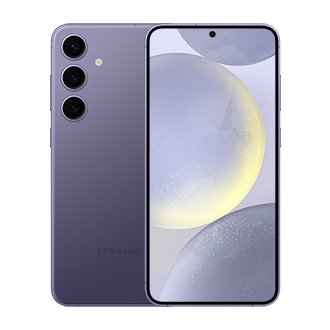
Hey there! Ready to connect your Samsung Galaxy phone to Wi-Fi? No worries, I'm here to walk you through it step by step
Step 1: Find Your Phone's Brain
- Unlock your phone: Press the power button, the one that wakes it up from its nap.
- Find the Settings app: Look for a gear-shaped icon. It's usually on your home screen or in the app drawer (that's where all your apps live).
Step 2: Dive into Connections 🌐
Once you're in the control room (Settings), look for the section called "Connections" or "Network". This is where your phone connects to the outside world—like a bridge to the internet.
Step 3: Find Wi-Fi and Tap It! 📶
In the Connections menu, you’ll see an option labeled "Wi-Fi." This is what we’re after! Tap on it, and your phone will start searching for nearby Wi-Fi.
Step 4: Choose Your Network 🏠
Now, your phone will show you a list of all the available Wi-Fi networks. Look for BOATER WIFI.
**If you have your own custom Wi-Fi name feel free to connect to that instead!
Step 5: Enter the Password 🔐
Once you tap on your network, a box will pop up asking for the password. Please, type wireless Type it in carefully—make sure you get all the letters right! **If you have your own custom Wi-Fi name, please use the password to that instead!
Step 6: You're Connected!
- Wait a few seconds: Your phone will connect to the Wi-Fi network. You'll usually see a little checkmark or a Wi-Fi symbol at the top of your screen.
And that's it! You've successfully connected your phone to Wi-Fi. Now you can surf the web, watch videos, and enjoy all the wonderful things the internet has to offer without worrying about your data.
Need more help? Feel free to ask!
** If you forgot the password to your custom Wi-Fi, please send us an email to: support@boaterwifi.net or text/call us at: 949-850-WIFI (9434)
Related Articles
How to Forget Wi-Fi network on Samsung Galaxy phones!
Let's Forget That Wi-Fi Network! Don't worry, it's easier than it sounds! Step 1: Open the Settings App First, you'll need to get to the Settings on your Samsung Galaxy phone. This app looks like a little gear icon. You can usually find it on your ...Let's Get Your iPhone Connected to Wi-Fi!
Alright, let's get your iPhone connected to Wi-Fi! Step 1: Find the Settings First, let's find the control center of your iPhone. It's like the brain of your phone! Look for a little gear icon on your home screen. Step 2: Turn on the Wi-Fi Switch ...How to Turn On Wi-Fi Calling on Your Samsung Phone
Imagine this: You're in a place with poor cell service, but you still need to make important calls. That's where Wi-Fi calling comes in! It lets you use your phone's internet connection to make calls. Let's get it set up on your Samsung phone. Step ...Let's Get Your Samsung Smart TV Online!
Alright, let's connect your Samsung smart TV to Wi-Fi. It's pretty straightforward, I promise. Think of it like introducing your TV to your home's internet. Step 1: Find the Settings Menu First things first, we need to get into the TV's settings. ...How to Forget a Wi-Fi Network on Your Samsung Smart TV
To forget a Wi-Fi network on your Samsung Smart TV, follow these simple instructions. Step 1: Access the Home Screen First, make sure your TV is turned on. Press the Home button on your remote control to get to the home screen. Step 2: Go to Network ...