Let's Get Your iPhone Connected to Wi-Fi!
First, let's find the control center of your iPhone. It's like the brain of your phone! Look for a little gear icon on your home screen.
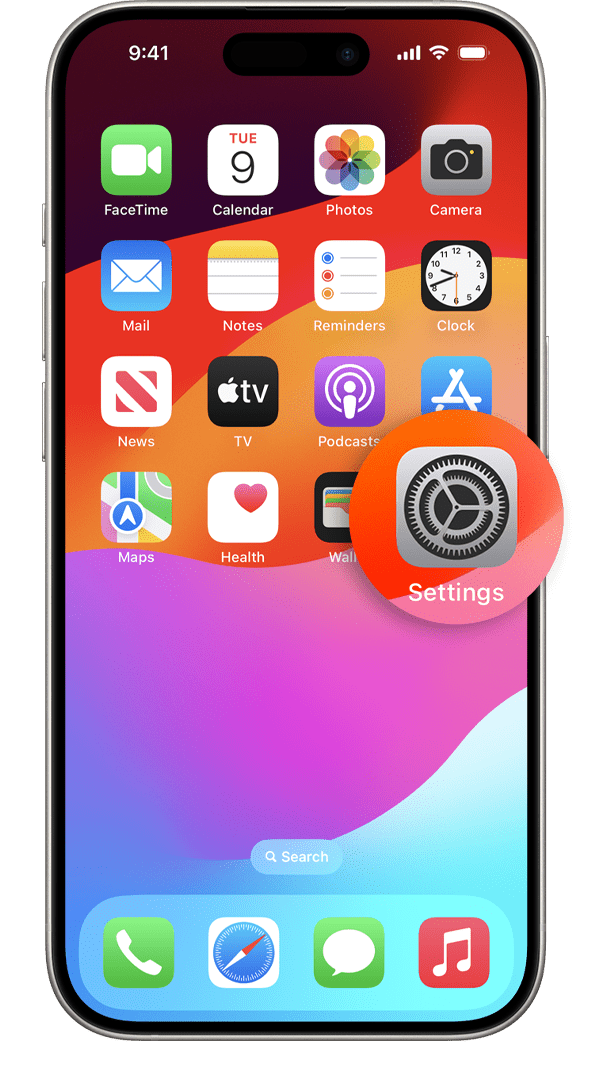
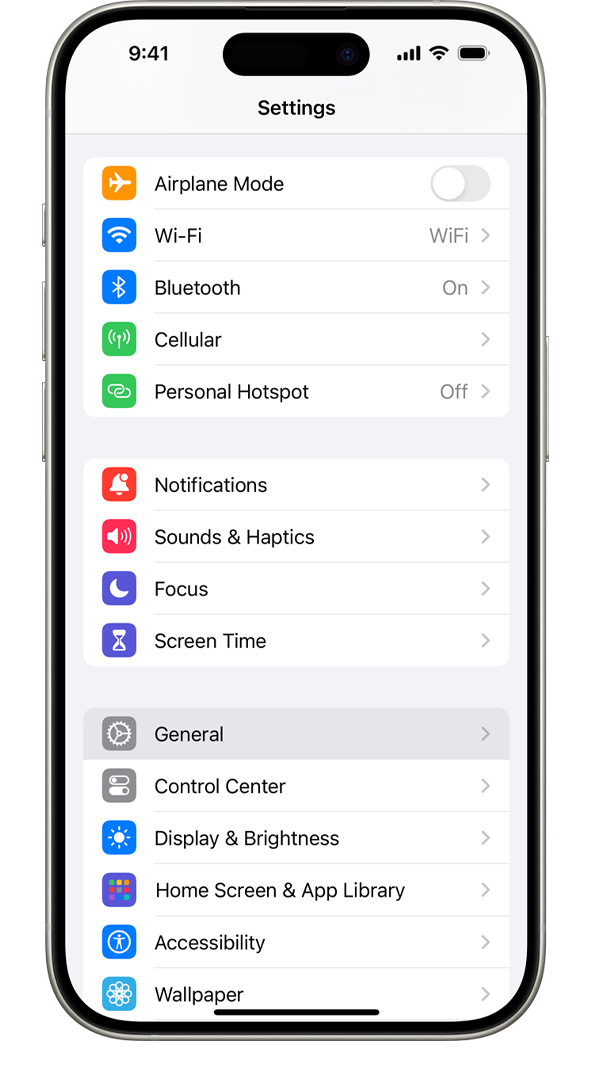
Once you're in the gear room (Settings), look for something that looks like little waves. It's called "Wi-Fi". Give it a tap.
You'll see a little round button next to "Wi-Fi". Slide it to the right so it turns green.
A list of available Wi-Fi networks will appear. It's like a menu of different internet cafes! Choose BOATER WIFI.
**If you have your own custom Wi-Fi name feel free to connect to that instead!
**If you have your own custom Wi-Fi name, please use the password to that instead!
Note: The exact steps might vary slightly depending on your iPhone's model. If you're still stuck, you can always reach out to us!
** If you forgot the password to your custom Wi-Fi, please send us an email to: support@boaterwifi.net or text/call us at: 949-850-WIFI (9434)
Related Articles
How to Turn On Wi-Fi Calling on Your iPhone
Imagine this: You're in a place with poor cell service, but you still need to make important calls. Don't worry! Your iPhone can use your Wi-Fi to make calls. This is called Wi-Fi Calling. Let's turn it on. Step 1: Get Your iPhone Ready First things ...Connecting Your Google Nest Cam to Wi-Fi
Let's walk through how to connect your Google Nest Cam to Wi-Fi! To connect your Google Nest Cam to Wi-Fi, follow these simple steps. Make sure you have your smartphone handy, as you will need to use it to set up the camera. Let's get started! Step ...Let's Connect Your Blink Camera to Wi-Fi!
Don't worry if you're not a tech whiz! Connecting your Blink camera to Wi-Fi is actually pretty simple. Let's break it down step by step What You'll Need: Your Blink camera The Blink app downloaded on your phone Your Wi-Fi network name and password ...Let's Get Your Samsung Smart TV Online!
Alright, let's connect your Samsung smart TV to Wi-Fi. It's pretty straightforward, I promise. Think of it like introducing your TV to your home's internet. Step 1: Find the Settings Menu First things first, we need to get into the TV's settings. ...How to Get Your Samsung Galaxy Phone Connected to Wi-Fi
Hey there! Ready to connect your Samsung Galaxy phone to Wi-Fi? No worries, I'm here to walk you through it step by step Step 1: Find Your Phone's Brain Unlock your phone: Press the power button, the one that wakes it up from its nap. Find the ...