Let's connect your PlayStation to Wifi!
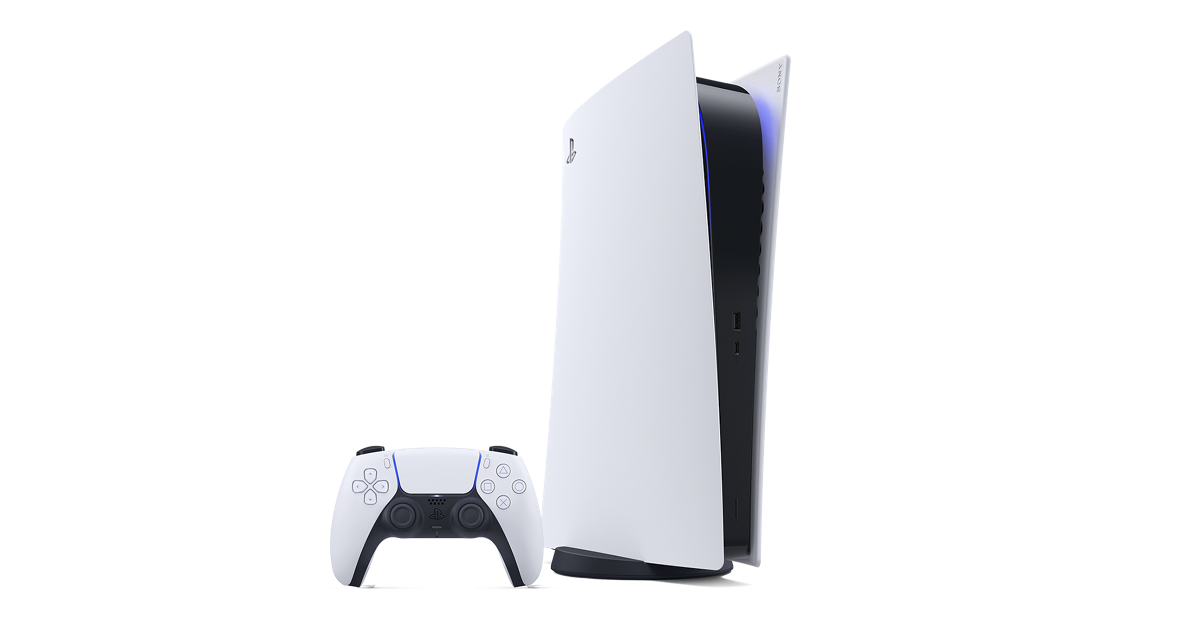
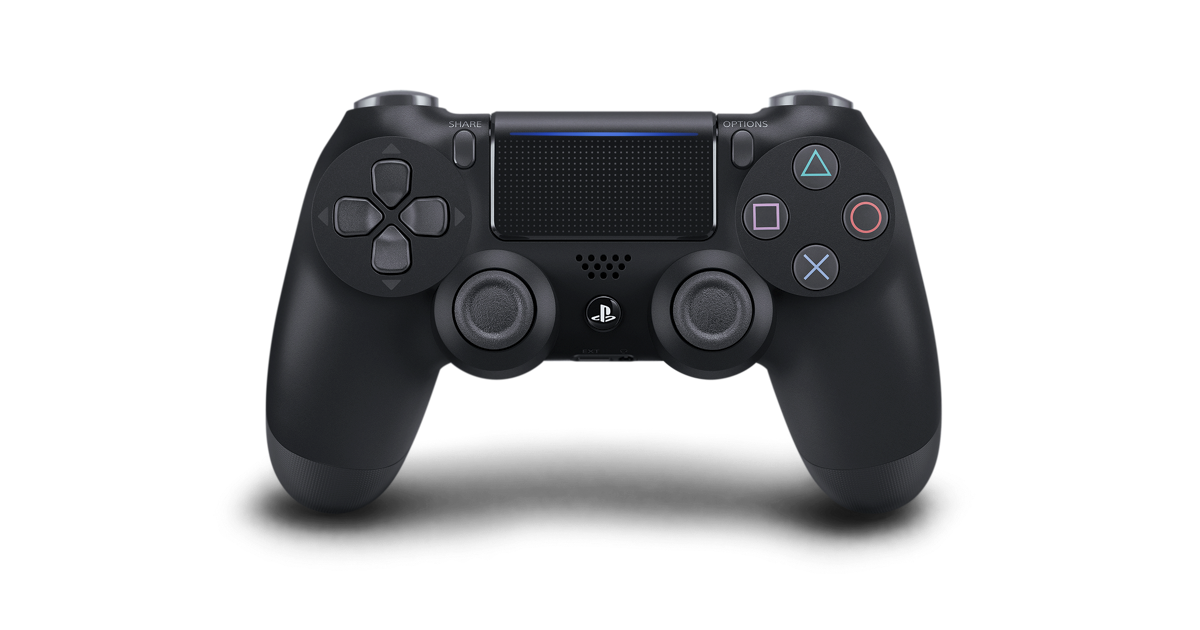
First things first, you need to turn on your PlayStation. You can do this by pressing the power button on the front of the console or using the PlayStation button on your controller.
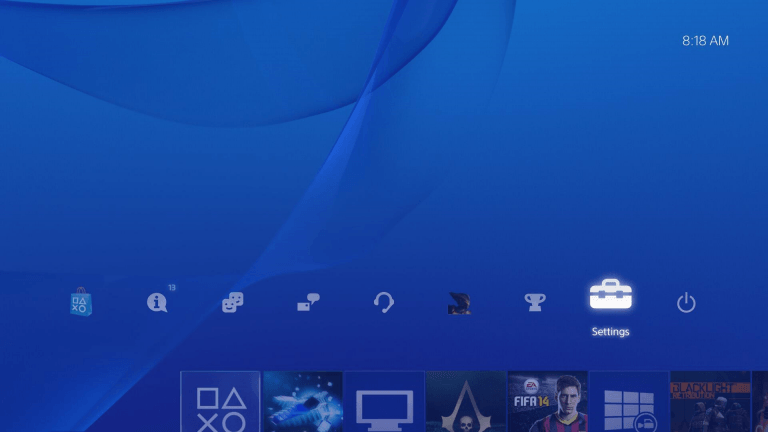
You'll see a bunch of colorful icons on your TV screen. Look for a gear-shaped or toolbox icon. That's the "Settings" button. Use your controller to move the cursor over it and press X.
Once you're in Settings, you'll see lots of options. Don't worry, we're just looking for one. Find something that says "Network" or has a little globe icon. Select it.
In the Network menu, choose “Set Up Internet Connection.” This is where the magic happens. You’re basically telling your PlayStation, “Hey, we need to get you online!”
Next, select “Use Wi-Fi” and then “Easy.” Your PlayStation will start searching for available networks. Once it’s done, you’ll see a list of WiFi networks, select BOATER WIFI. **If you have your own custom Wi-Fi name feel free to connect to that instead!
A screen will pop up asking for the WiFi password. Please enter wireless. Enter it carefully
**If you have your own custom Wi-Fi name, please use the password to that instead!
Once you've entered the password, your PlayStation will try to connect. You might see some loading screens. After a while, you'll get a message saying if the connection is good.
Related Articles
Reset your PlayStation 5 to Factory Default!
Okay, let's get your PlayStation 5 back to its original settings! Think of it like giving your PS5 a fresh start. Important Note: Doing this will erase all your games, saved progress, and personal settings. Make sure you really want to do this! If ...How to connect an Xbox to Wifi
Hey there, Ready to dive into the world of online gaming and streaming? Let’s get your Xbox connected to Wi-Fi in a few simple steps. Step 1: Find the Xbox Button First, look for a big, green button on your controller. Press it once. You'll see a ...How to connect your Wii to Wifi!
Hey there! Ready to get your Wii connected to the internet so you can unlock all the cool features? No worries; I’ve got your back! Here’s how to do it, step by step. What You'll Need: Your Wii console Your Wii remote Your wireless network name ...Let's Connect Your Blink Camera to Wi-Fi!
Don't worry if you're not a tech whiz! Connecting your Blink camera to Wi-Fi is actually pretty simple. Let's break it down step by step What You'll Need: Your Blink camera The Blink app downloaded on your phone Your Wi-Fi network name and password ...Let's Get Your Mac Online!
Connecting your Mac to Wi-Fi is as easy as pie! Let's do this step-by-step. Step 1: Find the Wi-Fi Symbol First, look at the top right corner of your Mac's screen. You should see a little symbol that looks like waves. This is the Wi-Fi symbol. Step ...