How to Connect Your Roku to Wi-Fi
First things first, make sure your Roku TV is turned on. Grab your remote and hit the power button. You should see the Roku home screen, which looks like this:
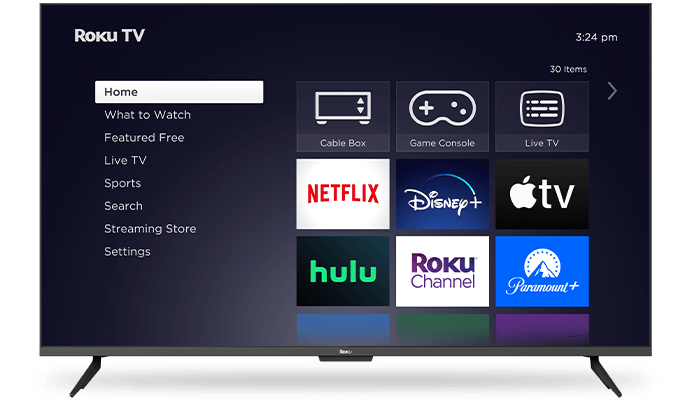
Using the arrow buttons on your remote, navigate to the left side of the screen where you’ll see a menu. Scroll down and select "Settings."
Step 3: Select Network
In the Settings menu, you’ll find an option called "Network." Click on it to proceed to the next step.
Step 4: Set Up Connection
Now, select "Set up connection" and then choose "Wireless" as your connection type. Roku will start scanning for available WiFi networks.
You should now see a list of available WiFi networks. Use the arrow buttons to find BOATER WIFI and press the OK button on your remote.
**If you have your own custom Wi-Fi name feel free to connect to that instead!
This part might feel a bit like typing on a typewriter, but don’t worry, you’ll get the hang of it. Use the on-screen keyboard to enter the WiFi password wireless. Once you’ve typed it in, select "Connect." **If you have your own custom Wi-Fi name, please use the password to that instead!
Step 7: Connection Successful
If you’ve entered the correct password, you should see a message saying that your Roku TV is connected to the internet. Congratulations!
Step 8: Enjoy Streaming!
Now that your Roku TV is connected to the internet, you can start streaming your favorite shows, movies, and more. Happy watching!
Note: The exact steps might vary slightly depending on your Roku TV's model. If you're still stuck, you can always reach out to us!
** If you forgot the password to your custom Wi-Fi, please send us an email to: support@boaterwifi.net or text/call us at: 949-850-WIFI (9434)
Related Articles
How to Forget a Wi-Fi Network on Roku TV
Sometimes, you may want your Roku TV to forget a Wi-Fi network. It could be because you're changing to a new network or fixing a connection issue. Don’t worry, this is super easy! Step 1: Turn on Your Roku TV Turn on your Roku TV using the power ...Connect your TCL Smart TV to WI-Fi
So, you’ve got a shiny new TCL Smart TV and can’t wait to dive into all those streaming apps. But first, you need to get it connected to the Wi-Fi. Don’t worry, it’s easier than it sounds, and I’m here to walk you through it. Step 1: Turn on Your TCL ...How to Connect Your Fire TV Stick to Wi-Fi!
So, you’ve got your Fire TV Stick all plugged into your TV and powered up, but now you’re staring at the screen, wondering how to get it connected to Wi-Fi. Don’t worry—I'll walk you through it like we’re sitting on the couch together. Step 1: Plug ...Connect your Ring camera to Boater Wi-Fi
It might sound a bit techy, but it's not as complicated as it seems. Let's break it down step-by-step. First thing you'll need: Your Ring camera: Make sure it's charged or plugged in. The Ring app: Download it from the App Store (for iPhone) or ...Connect your TPlink Tapo Security Camera to Wi-Fi
To connect your Tapo security camera to Wi-Fi, follow these easy steps. This guide is easy to follow even if you are not tech-savvy, so take your time and follow along! Step 1: Prepare Your Camera Open the box: Take your Tapo camera out of the box. ...